

 Contact


 Popup Pad - Frequently Asked Questions
General Questions
1. What is the default hotkey?
2. What other hotkeys can I use?
3. How do I get to the settings?
4. How do I change the default hotkey?
5. How do I change the font used?
6. How do I change the colours used?
7. How do I change where and how the program pops up?
8. What the point of the auto save option?
1. What is the default hotkey?
The default hotkey is set to the F9 function key on the top of the keyboard:
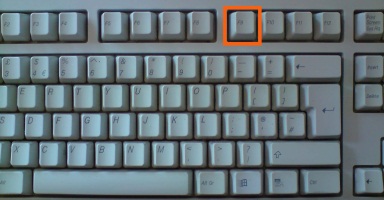
You can change the hotkey in the settings (How do I change the default hotkey?)
2. What other hotkeys can I use?
| New Pad | CTRL + N |
| CTRL + T | |
| Previous Pad | CTRL + Up |
| Next Pad | CTRL + Down |
| Maximise | ALT + Enter |
| CTRL + M | |
| Select All Text | CTRL + A |
| Save Pad | CTRL + S |
| Save All Pads | CTRL + SHIFT + S |
| Close Pad | CTRL + F4 |
| Hide Pad | Escape (if enabled) |
3. How do I get to the settings?
You can enter the settings in two ways:
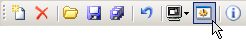
1. Click on the settings button on the toolbar when the program is open:
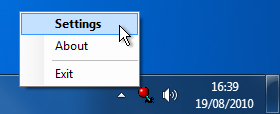
2. Or, right-click on the system tray icon and select 'Settings':
4. How do I change the default hotkey?
Go into the settings (How do I get to the settings?)
Then click on the Hotkey button on the toolbar:
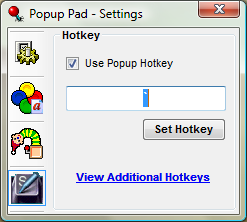
The current hotkey will be displayed in the text box. Press the key, or combination of keys you want to set, the text box will display your selection:

To save your selection, click on the 'Set Hotkey' button. The change will take effect immediately. If you do not click 'Set Hotkey' and close the window, the hotkey will remain what it was before.
5. How do I change the font used?
Go into the settings (How do I get to the settings?)
Then click on the Appearance button on the toolbar:
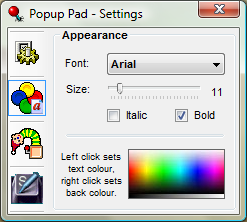
The current font will be displayed in the drop down list. To change it, select another from the list. You can decrease or increase the size of the font by moving the slider below, left and right respectively. Also the font can be made bold and/or italic by ticking the corresponding check box. All changes will take effect immediately.
6. How do I change the colours used?
Go into the settings (How do I get to the settings?)
Then click on the Appearance button on the toolbar:
The block of colour in the lower half of the window is used to change the colours of the pads. Left-clicking while hovering over it will change the text colour, right-clicking will change the background colour. All changes will take effect immediately.
7. How do I change where and how the program pops up?
Go into the settings (How do I get to the settings?)
Then click on the Animation button on the toolbar:
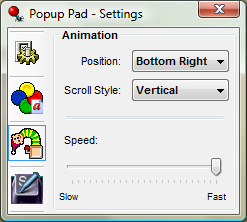
You can change the position the program appears on the screen using the 'Position' drop down. You can choose if it should pop in vertically or horizontally using the 'Scroll Style' drop down (select 'None' to have the program appear without any animation). The 'Speed' slider in the lower half of the window can be used to alter how fast the program appears and disappears.
8. What the point of the auto save option?
The pads are always saved when the program is closed, but the auto save option insures that if your computer should crash before the program is properly exited your data isn't lost.
You can set the save interval to be 1, 5, 10, 15, 30 or 60 minutes.